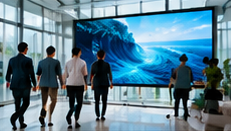

When expanding digital signage across an office, site conditions differ sharply between visitor-facing reception, bright glass-walled lobbies, and employee-only staff canteens. Each area presents unique challenges for hardware selection, installation, and reliable day-to-day operation. A well-structured site survey helps avoid costly mistakes, mismatched equipment, and operational disruptions.
This article provides a step-by-step site survey and checklist for office signage hardware. It covers orientation planning, input connections, mute/volume settings, power scheduling, restart tests, and essential safety checks for installation. All recommendations should be verified with your CMS, hardware, and player vendors before rollout.
Key Takeaways
- Survey each zone—reception, lobby, staff areas—for unique light, visibility, and access needs.
- Hardware choices must support planned orientation, input, and restart behaviour—always validate in a physical trial.
- Safe installation requires wall access checks and must be handled by qualified personnel; never bypass safety protocols.
Reception: Visitor-Facing Displays
Site Conditions: Reception areas typically serve as the company’s first impression. Displays here should be bright, easily readable, and visually aligned with furniture and visitor flow.
- Orientation: Decide portrait vs. landscape orientation based on content. Confirm display, player device, and planned OS/player app all support the chosen orientation. Check with both your hardware and CMS vendor documentation.
- Inputs: Record available HDMI/DisplayPort/USB inputs. Check if the player device can be securely hidden or mounted out of sight.
- Mute Operation: Reception screens usually run muted. Confirm mute/volume can be set and retained by the display or player device—not all combinations allow this. Test with your chosen player app and device.
- Power Schedule: Reception areas may need screens off after hours. Check if displays support scheduled power-down and restart, or if this must be handled by external timers. Validate the player device resumes playback after power events.
- Restart Behaviour: Simulate power loss. Does the display and player device auto-restart and resume content? This varies—test thoroughly in your environment.
Lobbies: Bright and Glazed Areas
Site Conditions: Lobbies are often open, bright, with glass walls and changing daylight. Visibility and glare are major concerns, and hardware must be robust.
- Brightness: Choose display brightness using the measured lighting conditions and a demonstration with your actual content; a single nominal brightness figure is not a universal requirement. Test visibility at different times of day.
- Orientation/Placement: For wayfinding or branding towers, portrait mode is common. Confirm support across display, player device, and software as above.
- Inputs and Cabling: Glazed or open lobbies may have limited wall access. Plan for cable runs and secure mounting. Use tamper-resistant mounts if in public reach.
- Mute/Volume: Lobbies may allow low-volume playback for ambience. Validate the player and display retain settings after power cycles.
- Power and Restart: Lobbies may operate extended hours. Test scheduled power cycles and simulate outages to ensure reliable restart and playback resumption. Offline playback depends on the player and supported cached content; test with your workflow.
Staff Canteens: Employee-Focused Screens
Site Conditions: Canteens can be noisy, with screens mounted high for visibility. Content may include menus, announcements, or entertainment.
- Orientation: Landscape is most common for menu boards. Confirm support with all hardware and software components.
- Inputs: Identify available power and data outlets. Can the player device be securely fixed above reach?
- Volume: Canteens may use moderate volume. Test that volume settings persist after restarts, and that mute can be enforced if required.
- Power Schedule: Canteens may not require overnight display operation. Test scheduling and restart behaviour as above.
- Restart Behaviour: Simulate power loss and network recovery. Does playback resume automatically? Offline content is only available on compatible players with supported caching.
Hardware and Installation Checklist
On smaller screens, scroll sideways to view every column.| Item | Reception | Lobby | Staff Canteen |
|---|---|---|---|
| Orientation (Portrait/Landscape) | Confirm with all hardware/software | Confirm with all hardware/software | Confirm with all hardware/software |
| Input Connections | HDMI/DisplayPort, secure cabling | Plan for cable runs, tamper resistance | Accessible power/data, secure mount |
| Mute/Volume Setting | Test mute retention | Test low-volume/mute persistence | Test volume/mute persistence |
| Power Scheduling | Test scheduled off/on | Test extended hours, auto-restart | Test scheduled off/on |
| Restart Behaviour | Simulate power/network loss | Simulate power/network loss | Simulate power/network loss |
| Wall/Surface Access | Check for safe, stable mounting | Check for wall strength, cable access | Check for ceiling/wall mount options |
| Installation Personnel | Qualified installers only | Qualified installers only | Qualified installers only |
Common Pitfall: Skipping Physical Restart Tests
Many teams assume digital signage will recover automatically after a power loss or network outage. In practice, actual restart behaviour depends on the player device, operating system, display settings, and software. Always simulate outages during your pilot installation and verify that playback resumes as desired. If manual intervention is required, address this before rollout.
Conclusion
Careful site surveys and hardware checks are vital for successful office signage deployments. By tailoring your approach for each area, confirming orientation and input support, validating mute and restart behaviour, and ensuring safe installation, you reduce operational risk and ensure a positive experience for both visitors and staff. Installation must always be performed by qualified personnel following safety protocols. Hardware and software compatibility, including with your signage CMS, should be checked in a realistic test setup before full rollout.
Related Reading
- Corporate Signage: A 90-Day Internal Communications Rollout
- Corporate Signage Access: Keep Internal Information Private
Try this with your own screens
During your pilot installation, test how your chosen displays and player devices handle power loss and scheduled restarts. Observe if playback resumes correctly without user intervention, and document any manual steps needed for reliable operation.
Discuss your setup for your screen requirements.




