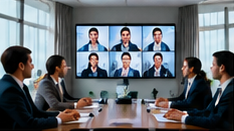

Imagine a situation: a visitor in your office lobby glances at the digital signage and, for a moment, sees a slide showing confidential salary data. Or, an employee notices that personal HR dashboards are briefly displayed in a cafeteria visible to guests. These hypothetical scenarios show why teams should assess the real-world risks of misclassifying content or overlooking access controls on internal communication screens.
Protecting internal information on digital signage is not just about technology—it's about clear rules, tested processes, and vigilance around what gets shown, where, and to whom. This article helps you classify content, manage permissions, and prepare for accidental exposures, so sensitive data stays private.
Key Takeaways
- Classify content by audience and risk before publishing to any screen.
- Review physical screen placement and user access regularly with a permissions matrix.
- Prepare a clear incident response plan for accidental confidential content displays.
Classifying Content for Digital Signage
Not all corporate content is suitable for every screen or audience. Begin by categorising each content item before scheduling it, using these three groups:
- Public: General announcements, event promotions, visitor greetings, wayfinding, and compliance posters—safe for any audience.
- Employee-Only: Internal updates, staff-only notices, team metrics (without personal details), policy reminders, and training information—never for visitor areas.
- Unsuitable/Confidential: Personal dashboards, pay slips, HR or medical records, strategy documents, incident logs, personally identifiable information (PII), or anything covered by non-disclosure—never to be scheduled on shared screens.
Tip: Always verify content sensitivity before uploading to your signage system. When in doubt, treat as confidential.
Screen Placement and Visitor Sightlines
Even the best content rules can fail if screens are placed where the wrong audience can see them. Consider:
- Lobby, corridors, and meeting rooms: Assume visitors may see these screens. Only display public content.
- Workspaces, cafeterias, or break rooms: Use for employee-only content, but avoid personal or confidential data unless access is controlled and no visitors are allowed.
- Restricted areas (e.g., HR or IT rooms): Can display sensitive dashboards if access is physically limited and screens are not visible through windows or open doors.
Regularly walk the site to check actual sightlines. A screen intended for staff may be visible from a visitor waiting area due to a glass partition or open plan layout.
Permission Review Matrix
To manage who can upload, schedule, or edit content, and to which screens, use a review matrix like the one below. This helps prevent both accidental and intentional misuse.
On smaller screens, scroll sideways to view every column.| Role | Content Access | Screen Group | Actions Allowed |
|---|---|---|---|
| Communications Head | Public, Employee-only | All screens | Create, approve, publish |
| HR Manager | Employee-only, Confidential | Staff areas, HR office | Create, approve |
| IT Admin | All types | All screens | System setup, user management |
| Department User | Public | Lobby, meeting rooms | Submit for approval |
Review this matrix quarterly or after any staff changes. Avoid shared admin accounts—each person should use their own login, with permissions matched to their role.
Special Risks: Dashboards & Shared Admin Accounts
Dashboards containing personal or confidential data should never be published to general staff or public screens. If your signage system allows live dashboards, ensure only anonymised or aggregated data is shown, and access is tightly controlled. Always test with demo data before going live.
Shared admin accounts are a common vulnerability. They make it difficult to track who scheduled what, and can lead to mistakes or deliberate misuse. Issue individual accounts, and promptly remove access when staff leave or change roles (offboarding).
Incident Plan: Accidental Confidential-Slide Display
If a confidential slide is mistakenly displayed on a public or staff screen, act quickly:
- Immediate removal: Use your signage dashboard to take down the slide or pause the playlist as soon as possible.
- Notify affected parties: Inform your IT/security team and any individuals whose data may have been exposed.
- Log the incident: Record what was shown, where, when, and for how long. Note who had access to the area during the exposure.
- Review permissions and workflows: Identify how the content was scheduled and who approved it. Update your permission matrix and training as needed.
- Communicate remedial actions: Let stakeholders know what steps are being taken to prevent recurrence.
Test this plan with a tabletop exercise at least once a year, so staff know how to respond quickly if something goes wrong.
Common Failure to Avoid: Ignoring Offboarding
One major risk is failing to remove digital signage access for staff who have left or changed roles. This can lead to unauthorised content uploads or accidental disclosures. Set a recurring calendar reminder to review user access monthly, and always update permissions as part of your standard HR offboarding checklist.
Conclusion
Keeping internal information private on corporate digital signage requires more than just good intentions. By classifying content, placing screens thoughtfully, reviewing permissions, and preparing for incidents, you can minimise the risk of accidental or unauthorised data exposure. Test your processes regularly—security is everyone’s responsibility.
Related Reading
- Corporate Signage Value: Measure Message Understanding
- Corporate Signage: A 90-Day Internal Communications Rollout
Try this with your own screens
On your demo or trial screen, deliberately try scheduling both public and confidential sample content to different screen groups. Check if the review process and physical placement prevent unsuitable content from reaching unintended audiences.
Discuss your setup for your screen requirements.




