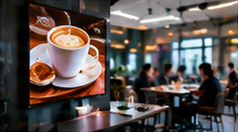

Quick-service restaurants and cafes face a practical challenge: choosing and installing digital menu boards that stay readable, safe, and reliable through busy breakfast-to-lunch transitions. Many teams focus only on display size and price, but fail to account for heat, glare, menu sightlines, safe cabling, and the daily realities of kitchen steam or grease. Overlooking these issues leads to unreadable menus, unexpected downtime, or costly servicing. This article provides a hands-on checklist for Indian QSRs to select and place menu board hardware, compare external and integrated players, and verify compatibility with your digital signage workflow—before committing to a full rollout.
Key Takeaways
- Test menu readability from customer and staff positions during real service hours, not just at installation.
- Verify all player/display hardware with your signage software and content before purchase.
- Plan safe, easy-to-clean cabling and confirm servicing access for both integrated and external players.
1. Assessing Screen Sightlines and Menu Readability
Placing a digital menu board isn't just about wall space. You must ensure:
- Customer queue sightlines: Can a person of average height (about 5'6" in India) easily read the menu from the start, middle, and end of the ordering queue? Check at busy times when crowds might block the view.
- Counter and staff visibility: Can staff see the full menu for order accuracy, especially during fast service?
- Glare and reflections: At different times of day, does sunlight or overhead lighting cause reflections that make the menu unreadable?
- Font and image clarity: Use your actual menu file (not a sample video) on the display to check if prices and items are legible from 2–3 metres away.
Sample Viewing Test Table:
On smaller screens, scroll sideways to view every column.| Position | Time | Menu Visible? | Notes |
|---|---|---|---|
| Queue Start | 8:30 am | Yes/No | Glare from window |
| Queue End | 1:00 pm | Yes/No | Blocked by pillar |
| Counter | 9:00 am | Yes/No | Steam near display |
| Staff Side | 12:30 pm | Yes/No | Font too small |
Update this table during trial runs to identify and resolve issues before rollout.
2. Placement: Heat, Steam, Grease and Manufacturer Limits
Menu screens in QSRs are often exposed to heat from kitchen equipment, steam from dishwashers, and airborne grease. These factors can shorten display life or cause sudden failures. Always check:
- Manufacturer placement limits: Confirm the minimum distance from ovens, fryers, or steam outlets as specified by the display manufacturer. Do not guess or rely on "commercial grade" marketing claims.
- Ventilation: Ensure the display’s vents are not blocked by walls or menu surrounds.
- Safe cabling: Power and data cables should be routed away from heat, moisture, and walkways. Use cable conduits or trunking approved for restaurant environments.
- Cleaning procedure: Choose screens with flat, sealed fronts and test cleaning with your actual surface disinfectant. Check that no liquid enters display seams or player ports.
Involve your facility manager and a qualified electrician to approve final placement and cabling before installation.
3. Integrated vs External Player: Servicing and Compatibility
Menu boards can be powered by:
- Integrated displays: The media player is built into the screen.
- External players: A separate device (e.g., a media box) connects to the display.
Each approach has pros and cons:
On smaller screens, scroll sideways to view every column.| Aspect | Integrated Display | External Player |
|---|---|---|
| Servicing | Requires full display removal if player fails | Player can be swapped or rebooted without moving display |
| Cabling | Fewer visible cables | Requires secure mounting for player and extra cables |
| Software Compatibility | Limited by display's OS and app support | Choose player hardware to match signage software requirements |
| Upgrade Flexibility | Hardware tied to display life | Player can be upgraded or replaced independently |
Always verify: Your digital signage software and content formats are fully supported by the chosen display or player. Test with a demo device using actual menu files before rollout. This check is essential, as not all displays or players support all file types or cloud workflows.
4. Menu Viewing and Schedule Test: Breakfast to Lunch
Before rollout, perform these real-world checks:
- Actual-menu viewing: Load your real breakfast and lunch menus on the test device. At 10:55 am, the breakfast menu should show; at 11:05 am, the lunch menu should display. Verify the transition is seamless and content is correct.
- Reboot test: At both times above, restart the player/display and confirm the correct menu appears immediately after startup. This ensures the device loads the right content even after a power cycle.
- Offline playback: Disconnect the device’s network (if safe to do so) and confirm cached content still displays as expected. Note: This depends on the player’s supported offline features and the signage software’s behavior; not all solutions handle this identically.
Document any failures or delays and address them with your vendor or IT team before proceeding.
5. Common Failure: Skipping the Demo Device Test
A frequent mistake is ordering all displays and players at once, based on spec sheets alone. This risks incompatibility with your menu content, software, or physical constraints. Always acquire a demo device and conduct the tests above with your actual signage workflow, menu files, and environment. Only proceed with bulk purchase after confirming fit.
Conclusion
Choosing QSR menu board hardware is more than picking a screen size or price point. It requires careful attention to placement, environmental risks, servicing plans, and hands-on compatibility tests with your real menu files and signage software. By following these steps and involving the right technical personnel, you reduce operational risks and avoid costly surprises after launch.
Related Reading
- QSR Menu Boards: A 90-Day Restaurant Rollout Plan
- Menu Board Publishing: A Price and Offer Safety Checklist
Try this with your own screens
Set up one trial display and player at your restaurant. Load your real menu files, test visibility from all customer and staff positions during peak hours, and perform a menu schedule/reboot check at the breakfast-lunch transition.
Discuss your setup for your screen requirements.




