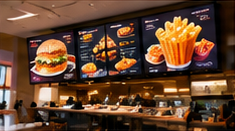

Imagine arriving early to open your café, only to discover the digital menu board is displaying yesterday’s expired combo offer and a mismatched price for your best-selling sandwich. In a busy QSR or café, such errors can lead to lost revenue, unhappy customers, and even regulatory scrutiny if allergens or ingredients are misrepresented. With multiple staff and suppliers updating menus, it’s critical to control what appears on screens before doors open each day.
This article provides a practical safety checklist to help restaurant teams prevent accidental price changes, unapproved promotions, and outdated product details from reaching customers. It also explains how to maintain a correction log and ensure food-related information is validated by qualified staff—without depending on automatic synchronisation or compliance guarantees.
Key Takeaways
- Always review and compare digital menu board prices and offers before opening.
- Assign specific staff to validate allergen and product information daily.
- Maintain a manual correction log for all menu changes and fixes.
Why Menu Board Safety is Challenging
Most QSRs and cafes handle frequent menu changes, seasonal offers, and price adjustments. With suppliers sometimes given access to upload new products or images, and staff working across shifts, it’s easy for mistakes to slip through. Outdated cached menus on offline players can also cause confusion, especially if connectivity is lost and updates are not pushed promptly.
Key risks include:
- Incorrect or outdated prices due to rushed edits or miscommunication
- Unapproved discounts or promotions going live without management sign-off
- Stale allergen, ingredient, or product information remaining on display
- Supplier-uploaded items bypassing internal checks
- Out-of-sync screens if new data is not pushed to all players before opening
Menu Board Safety Checklist
Use this checklist as part of your daily pre-opening routine. Adapt it as needed for your team size and menu update frequency.
On smaller screens, scroll sideways to view every column.| Step | Responsible | Timing | Output |
|---|---|---|---|
| 1. Compare menu board prices with approved price list | Manager or designated staff | Before opening | Price comparison log |
| 2. Validate all active promotions and offers | Manager | Before opening | Offer approval checklist |
| 3. Check allergen and product information for accuracy | Qualified kitchen or menu staff | Daily or after any update | Signed allergen/product info sheet |
| 4. Review supplier-uploaded items for approval | Manager or designated editor | After supplier upload | Supplier upload review log |
| 5. Confirm all screens have received the latest menu data | IT/support staff | After publishing updates | Status check report |
| 6. Log any corrections or last-minute changes | Editor/manager | Immediately after change | Manual correction log |
How to Maintain a Correction Log
Even if your CMS does not support user-level change tracking, a simple spreadsheet or notebook can be used. For each correction, record:
- Date and time of change
- Menu item or section affected
- Nature of correction (e.g., price fix, offer removal)
- Name of the staff member making the edit
- Reason for change (e.g., management directive, supplier error)
- Who validated the final update
Review this log weekly to spot recurring issues or training needs.
Who Should Validate Food-Related Information?
Allergen and product information should always be checked by someone with direct kitchen or menu responsibility. This could be a chef, kitchen supervisor, or a trained manager—not just whoever uploads the content. They should sign off on a daily sheet or digital checklist confirming accuracy before screens go live.
Common Failure: Uncontrolled Supplier Access
Allowing suppliers to directly upload menu content without a review step is a major risk. Always set up a process where supplier submissions are held for internal approval before publishing. If your digital signage platform does not support workflow controls, enforce this with a written SOP and manual review log.
Ensuring Screens are Up-to-Date
If your players support offline playback, remember that screens may show cached content until they next connect. Always confirm connectivity and content status on all screens before opening, especially after major updates. If a screen cannot be updated or verified and may show incorrect prices or product information, stop using that menu display and provide a checked alternative until the content is corrected. Record the incident and verify the actual screen before restoring it.
Conclusion
Publishing menu boards safely in a QSR or café environment requires more than just uploading new content. By following a structured checklist, assigning validation responsibility, and maintaining a manual correction log, you can significantly reduce the risk of pricing errors, unapproved offers, and outdated information reaching your customers. This routine, combined with clear roles and documented checks, helps protect both revenue and reputation—no matter how busy the day gets.
Related Reading
- Menu Board ROI: Check Basket Value Without Losing Margin
- QSR Menu Boards: A 90-Day Restaurant Rollout Plan
Try this with your own screens
On your trial screen or demo, walk through the daily menu update process: make a price change, log it manually, and have a second staff member verify the final display. Check that only approved edits appear before opening.
Discuss your setup for your screen requirements.




