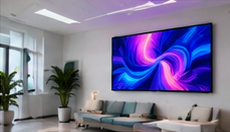

Real estate sales galleries today rely on digital signage to showcase project floor plans and detailed property cards. But a common frustration arises when visitors struggle to read labels on floor plans, scan enquiry QR codes, or interact with touch displays—especially under showroom lighting. Selecting the right combination of screens, players, and physical placement is critical to ensure both clarity and safety for buyers and staff.
This article addresses the practical hardware decisions for property galleries: making sure floor plans are readable, portrait property cards are attention-grabbing, and that both touch and non-touch screens are installed for safe, accessible visitor experiences. We’ll walk through requirements, testing approaches, and common pitfalls to avoid.
Key Takeaways
- Test actual floor-plan assets and QR codes on the intended screens at real-world viewing distances before rollout.
- Control reflection and glare with screen finish, angle, and lighting—not just screen brightness.
- Choose touch or non-touch displays based on intended interaction, cleaning needs, and visitor traffic patterns.
Ensuring Floor Plan Readability
Visitors expect to easily read floor plan labels, unit numbers, and area details from a comfortable viewing distance—often 1.5 to 2.5 meters away. To achieve this:
- Asset Preparation: Use high-resolution images with at least 150-200 dpi at the intended display size. Avoid thin fonts or small text in the artwork.
- Display Resolution: Full HD (1920x1080) is the minimum for most property gallery screens. For large or portrait screens, consider 4K for sharper detail, but only if your player hardware supports it.
- Label Sizing: Test if all key labels are legible at 2 meters. For example, a 24pt font at 1080p may be readable at 1.5m, but for 2.5m, use at least 36pt or larger. Print a sample and view at distance, or simulate on the actual screen.
- QR Code Testing: Print or display the actual QR codes at intended size and scan from a typical visitor's phone at 1-2 meters. Codes smaller than 2cm square are often unreliable at a distance.
Managing Reflection and Lighting
Showroom lighting often creates unwanted reflections that make screens hard to read. To address this:
- Screen Finish: Prefer matte or anti-glare screens over glossy ones, especially for displays facing windows or lights.
- Placement and Angle: Tilt screens slightly downward or away from direct light sources. Wall-mounted screens should avoid facing large windows directly.
- Lighting Control: Adjust ceiling lights or use spot lighting that does not reflect directly into the screen’s surface.
- Brightness Settings: A brighter screen can help, but excessive brightness causes eye fatigue. Aim for a balanced setting after addressing glare first.
Portrait Property Cards and Content Orientation
Property cards are often best presented in portrait orientation to match printed flyers or mobile screens. When selecting hardware:
- Screen Mounting: Confirm the display can be safely mounted in portrait mode—some consumer TVs are not rated for vertical use due to heat dissipation concerns.
- Player Support: Ensure your media player and software can rotate content or output natively in portrait. Test video and images for correct orientation.
- Asset Design: Design property cards with sufficient margins, large images, and clear call-to-action elements (like enquiry QR codes) near the bottom for easy scanning.
Touch vs. Non-Touch Display Options
Decide whether visitors should interact with property information directly or passively view it:
- Touchscreens: Best for interactive floor plans, unit selection, or self-service kiosks. Choose commercial-grade touch displays rated for public use, with toughened glass. Consider cleaning protocols for high-touch areas.
- Non-Touch Displays: Simpler to maintain, suitable for looping slideshows, video tours, or rotating property highlights. Use remote controls or scheduled content changes for updates.
- Hybrid Approach: Place a large non-touch floor plan at the gallery entrance, with smaller touchscreens at desks for detailed exploration.
Safe Visitor Placement and Accessibility
Hardware placement impacts both safety and the visitor experience. Key guidelines:
- Mount screens at eye level (typically 1.4–1.6m from floor to screen center) for standing viewers. For touchscreens, ensure reachability for all users, including those in wheelchairs.
- Keep enough space (minimum 1m) in front of each display for visitors to pause and view without blocking walkways.
- Secure all mounts to prevent tipping or accidental removal. Use professional installers for wall or kiosk mounts.
- Route power and data cables safely to avoid trip hazards.
Testing Your Gallery Setup: A Practical Checklist
On smaller screens, scroll sideways to view every column.| Test Item | How to Check | Pass Criteria | Owner |
|---|---|---|---|
| Floor plan label legibility | View sample at 2m | All labels readable | Gallery manager |
| QR code scan | Scan with phone at 2m | Links open reliably | Sales staff |
| Reflection/glare | Observe from main angles | No major glare spots | Installer |
| Touch function (if used) | Try all buttons/links | Responsive & accurate | IT support |
| Safe placement | Walk visitor route | No obstructions/trip risks | Facility manager |
Common Pitfall: Not Testing with Real Assets
A frequent mistake is approving screens based on generic demo content or spec sheets. Floor plans and property cards often have fine print or QR codes that are unreadable on the chosen screen size or orientation. Always test with actual, branded content before rollout, not just placeholder images.
Conclusion
Effective property gallery signage depends on more than just display size or resolution. By focusing on real-world readability, reflection control, appropriate interactivity, and safe placement, you can ensure visitors engage comfortably with your property information. Always validate your setup with real assets and typical visitor scenarios before going live.
Related Reading
- Property Signage: A 90-Day Sales-Gallery Pilot
- Property Display Checks: Availability, Claims and Personal Data
Try this with your own screens
On your trial screen, upload an actual floor plan and property card, then check label readability and QR code scan reliability from 2 meters away under gallery lighting. Adjust font size or screen placement if any detail is unclear.
Discuss your setup for your screen requirements.




